Windows tray app for Claude Code, Codex and Gemini CLI
Save the next fix for Claude Code, screenshot included
Snip what's wrong, type what should change, and CueTray saves both as one numbered cue in your project. When Claude is free, /next-cue hands it over, screenshots and all. In any other AI chat, click Copy and one shortcut pastes the message and the screenshot.

Version 1.0 · Windows 10 and 11 (64-bit) · Free for 14 days, then $14.99 once
Signed by Made4Uo LLC. If Windows warns you, click More info, check the publisher, then Run anyway.

Claude is busy, and you just spotted the next thing
You spot three more fixes while Claude is still on the first. Typing them in now can pull Claude off track, and a folder of screenshots soon loses which note went with which. CueTray parks them, in order, until Claude is free.
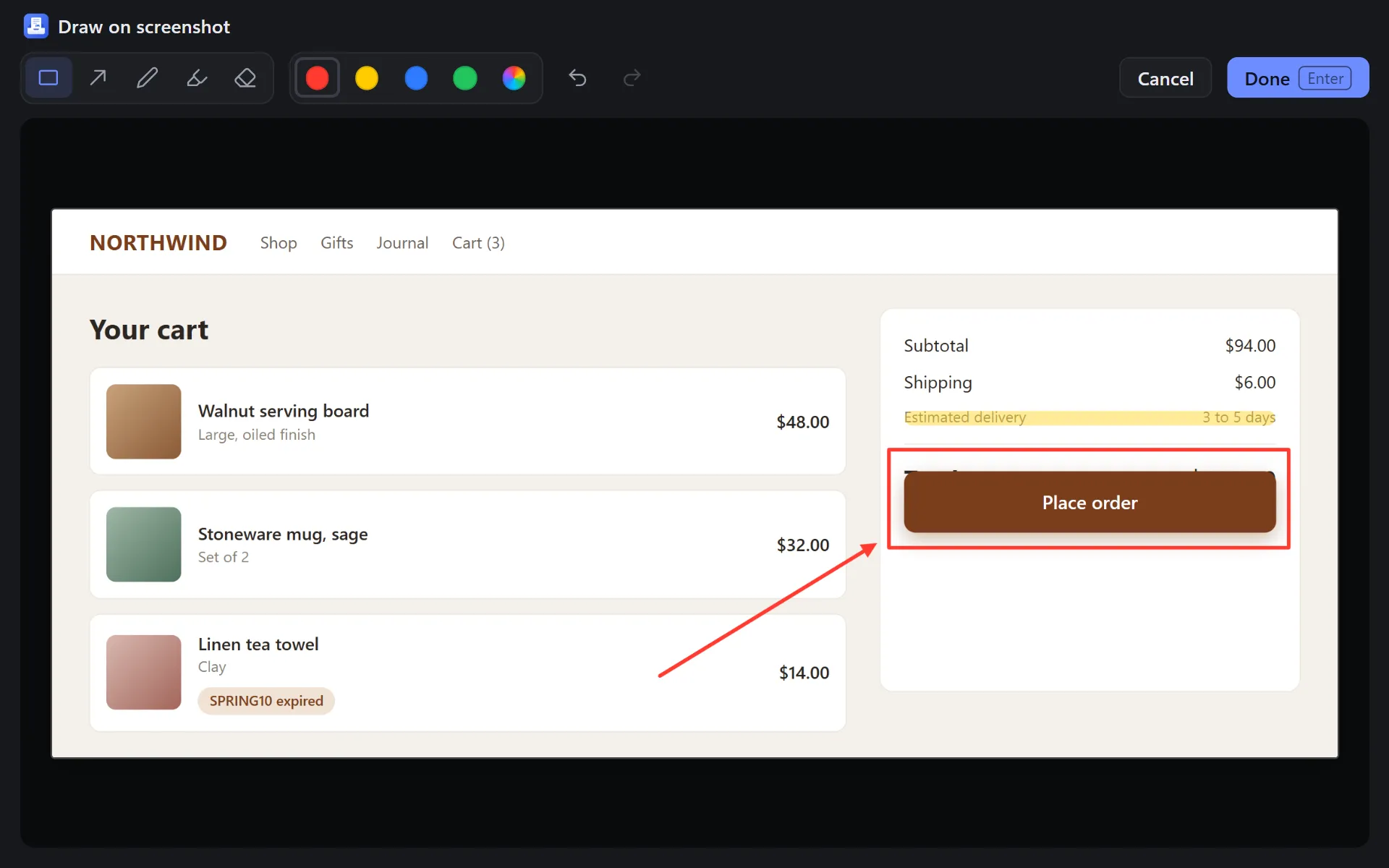
Picked up #003 (2 screenshots)> The Place order button covers the totalEditing cart.css, running the cart tests Saved for later 2 · 1 on hold
How it works
Snip it
Press Ctrl+Alt+S anywhere and drag a box on any monitor, or click once for the whole screen. Already have a screenshot? Paste it or drop it in.
Say what you want
Type what should change, and mark up the screenshot with a box, arrow, pen or highlighter if it helps. Pick the project and press Enter: the cue gets the next number, like #004.
Hand it to Claude
Run
/next-cuein Claude Code. Claude reads the message, opens every screenshot, moves the cue to Done and starts work. One cue per run, so requests never pile up.
One command picks up the next cue
Install /next-cue once, from CueTray's settings. It reads the .cuetray folder of whichever project Claude Code has open.
The guide covers each step, including held and finished cues.
| You type | Claude takes |
|---|---|
/next-cue | The first cue in line that isn't on hold |
/next-cue 7 | Cue #007, wherever it is in line (#7 and 007 work too) |
/next-cue list | Nothing: it lists what's waiting and what's on hold |
/next-cue footer | The cue whose message mentions "footer" |
The first thing Claude replies with:
Picked up #003 (2 screenshots). 2 more waiting, 1 on hold.
> The Place order button covers the total on the cart page. Keep the total visible above the button.
Running Claude in more than one window?
One VS Code window per part of a project (app, website, shared code), each with its own Claude Code? One snip shortcut serves them all: pick the project when you save.
/next-cue only takes cues from the project it runs in, so a website fix never lands in the app window. Folders open in VS Code, Cursor or Windsurf, and projects you've used with Claude Code, are already in the list. Each project numbers its own cues.
| VS Code window | Waiting cues |
|---|---|
| northwind-app | #007, #008 |
| northwind-shop | #003, #004, #006 (#005 on hold) |
| northwind-core | #012 (on hold) |
Run /next-cue in each window: the app's Claude takes #007, the shop's takes #003, and core's starts nothing because #012 is on hold.

Use it with any AI tool
Three tools get a command of their own. Every other AI chat gets the message and the screenshot from one shortcut.
| Where you work | How the cue gets there |
|---|---|
| Claude Code | Run /next-cue. Claude opens the screenshots itself. |
| Codex | Click Install next to Codex in CueTray's settings, then run $next-cue. |
| Gemini CLI | Click Install next to Gemini CLI, then run /next-cue. |
| Other AI chats | Cursor, Copilot, ChatGPT, Claude, Gemini and more: click Copy on the cue, then press Ctrl+Alt+P in the chat. CueTray pastes the message, then the screenshot. |
Made for working next to an AI assistant
Numbers that don't move
A cue keeps its number through edits and after it's done, and numbers are never reused. "#004 is still broken" means one cue, weeks later.
Hold a cue
Park an idea for later, or a fix that waits on a decision. A held cue keeps its place, and /next-cue skips it until you resume it.
Plain files
Each cue is an ordinary folder with your message and its screenshots. Open, edit or back it up like any other folder.
Your shortcuts
Ctrl+Alt+S snips, Ctrl+Alt+C starts a cue without a screenshot, and Ctrl+Alt+P pastes a copied cue. Change any of them in Settings; CueTray warns you if one is taken.
Your cues stay in your project
No account, no sync. Cues live in a .cuetray folder inside the project, kept out of git so they never land in a commit.
Claude Code reads a cue like any file you share with it. The privacy page lists everything CueTray stores and reads.
northwind-shop/
  .cuetray/       your cues and screenshots
  src/
package.json> /next-cuePicked up #012 (1 screenshot)> Bigger window with a sidebarUp next 2 · 1 on holdWhy I made CueTray
I keep three VS Code windows open, for the app, the marketing site and the shared core, each with its own Claude Code. Working on UI, I take screenshots constantly, and I didn't want to interrupt Claude mid-test to hand over the next fix. A notepad kept my words but not my screenshots, so I built a tray that keeps them together and lets Claude take the next one when it's ready.
One price, paid once
- Every feature free for 14 days. No card, no account.
- After the trial, saved cues still open, copy and go to Claude. Only new cues need a license.
- Your license key appears as soon as you pay.
- One license, one computer. Refunds within 14 days.
$14.99 one time, no subscription

Free licenses for early users, while they last: enter code LAUNCH at checkout.
Questions
The guide covers every step, and the privacy page lists everything CueTray stores and sends.
How much does CueTray cost?
$14.99 once, for one computer, after a 14-day free trial with no card or account.
What happens when the trial ends?
Every saved cue still opens, copies, edits and goes to Claude. Snipping and saving new cues need a license: paste your key into CueTray's settings and they're back.
Can I get a refund?
Yes, within 14 days of buying: write to info@made4uo.com from the address you paid with. The key stops working; your saved cues don't.
Doesn't Claude Code already queue messages?
It does: press Enter while Claude works and the message goes in once its current tool calls finish (Claude Code docs). CueTray is for what you're not ready to send: cues wait on disk with their screenshots, survive closing VS Code, and go in the order you choose. How CueTray compares with other tools.
Does CueTray save tokens?
Not by itself: each /next-cue adds a small, fixed amount. It makes two token-saving habits easier: snipping only the part that matters (on current Claude models an 800×450 snip is about 490 tokens, a full 1920×1080 screen about 2,690), and running /clear between unrelated cues without losing your list. How Claude Code spends tokens has the numbers.
How do the screenshots get to Claude?
As image files saved with the cue. /next-cue tells Claude to open them, so you never paste an image into the terminal, which is unreliable on Windows.
Do I need to be online?
Not for CueTray: snipping, drawing and saving all happen on your computer. Online, it checks for updates, and a licensed copy checks about once a day whether its purchase was refunded. Claude Code still needs its usual connection.
Does it work with Codex, ChatGPT or other AI tools?
Yes. Codex and Gemini CLI get their own command, and any other chat takes a cue with Copy andCtrl+Alt+P. How each one works.
Is there a Mac version?
Not yet. CueTray runs on Windows 10 and 11 (64-bit).Want it on your Mac? Leave your email to hear when it's ready.
Windows says "Windows protected your PC". What do I do?
Click More info, check that the publisher is Made4Uo LLC, then click Run anyway. The installer is signed, but Windows warns about new apps until enough people have installed them. Only run an installer you got through cuetray.com.
Keep the next fix ready
Snip it now. Hand it over when Claude is free. Free for 14 days.